Meters Density Comparison to Default Density
This analysis rule indicates the in-service mass/volume measurement elements with a change of value between the Case value and the default value listed in the material table that is greater than the configured delta limit (difference). The limit can be in percent of value or in engineering units. A limit of zero means that the rule has not been configured. The limit must be greater then zero for the limit to be used.
Any in-service meter measurement with a value change greater than the configured limit is reported to the Case log, which you can view in the Log tab of the Case Properties window. The output contains a list of meters in violation, and a description of the violation.
The following table lists a sample log output for this analysis.
Sample Log
| Time | Severity | Element | Attribute | Message |
|---|---|---|---|---|
| 9/1/2005 10:05 | ...REPORTING METER DENSITY COMPARISON TO DEFAULT DENSITY | |||
| 9/1/2005 10:05 | Warning | MeterA | Density | Density: 1 (SG) , material MIXA default density :0.611231101511879 (SG) , Diff: 0.39, %Diff: 38.88 |
| 9/1/2005 10:05 | Error | MeterB | Material | Material code = MYMATERIAL not found in table SF_Material Table can not find default density for meter MeterB |
Analysis Method
- Collect a list of all measurement elements in the current Case that satisfy the following criteria:
- Status Attribute value is IS (In Service).
- For each meter, calculate the difference between the density and the default value in the material table.
- Write to the log section of the case. Report the test name, the measurement basis, the difference between the density and default values and the percent difference between these values (percent based on the density value).
Configuration Using the Wizard
The configuration of the Meters density comparison with default density is a selection of the General Gross Error Analysis Rule. You open the window for configuring the test (shown in the following figure) from the General Gross Error Analysis Rule Wizard.
Open the Gross Error Configuration window as described in Configuring - General Gross Error Analysis Rule.
On the Liquid/Gas Meters tab, select Meters density comparison to default density.
A Meters density comparison to default density - Attributes window opens.
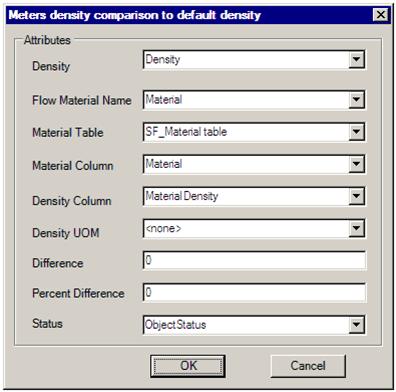
Select the Attributes according to the following table:
Attributes
Selections Description Density Density attribute. Defaults to 'Density'. Flow Material Name Material attribute. Defaults to 'Material'. Material Table Material table name. The default is 'SF_Material table'. Material Column Name of the column in the material table that contains the material. The default is 'Material'. Density Column Name of the column in the material table that contains the density. The default is 'Density'. Density UOM Select the unit of measure of the density. Difference Enter a value in the engineering unit of the Measured attribute. Percent Difference Enter a value in percent. Status Meter in/out of service status. This defaults to 'ObjectStatus'. Enter the Difference and Percentage Difference thresholds.
Click OK to finish the configuration.
The text "CONFIGURED" displays next to the 'Meters density comparison to default density' selection.
To run this test, see Running the General Gross Error Analysis.